
In this post, we will show how to install Git on Windows.
- Open Google and search for git on windows.
- Go to https://git-scm.com/.
- Find a version that is compatible with your operating system. In our case, it is Windows x64.
- Click on the link. The download will start after you specify the folder.
- After this, go to the folder with the downloaded file and run it.
- Choose the installation path and continue.
- When you proceed to the Select Components, check the Additional icons checkbox. It will simplify the usage in the future.
- Continue the installation.
- Leave all the settings offered during the installation as default position up to the final step – Completing the Git Setup Wizard.
- Check the Launch Git Bash checkbox. In the future, you will be able to run the program using the icon on the desktop.
- Uncheck View Release Notes checkbox. We don’t need it for now.
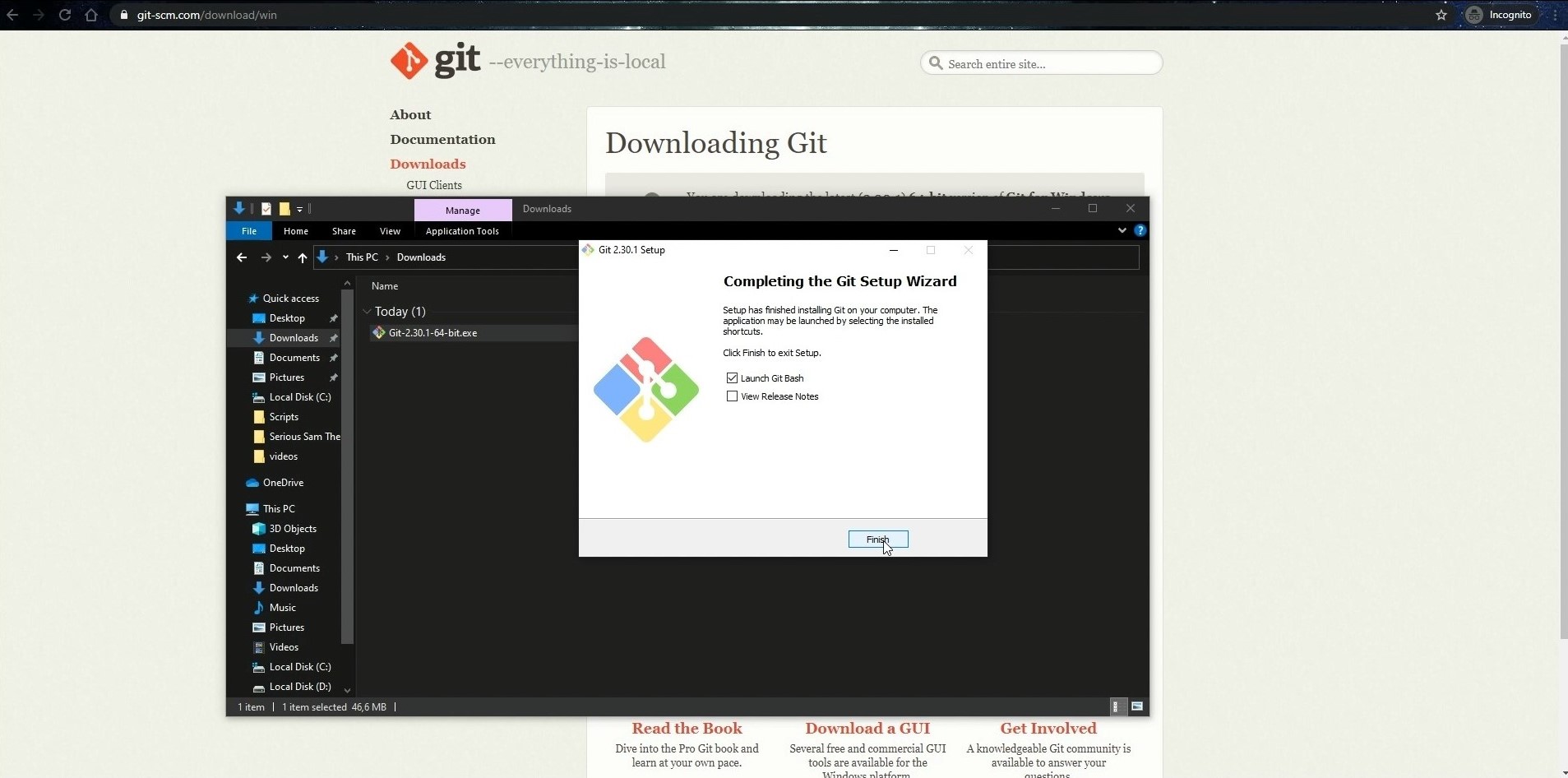
- Click on the Finish.
- To check the version, enter git –version in the open terminal window and press Enter.
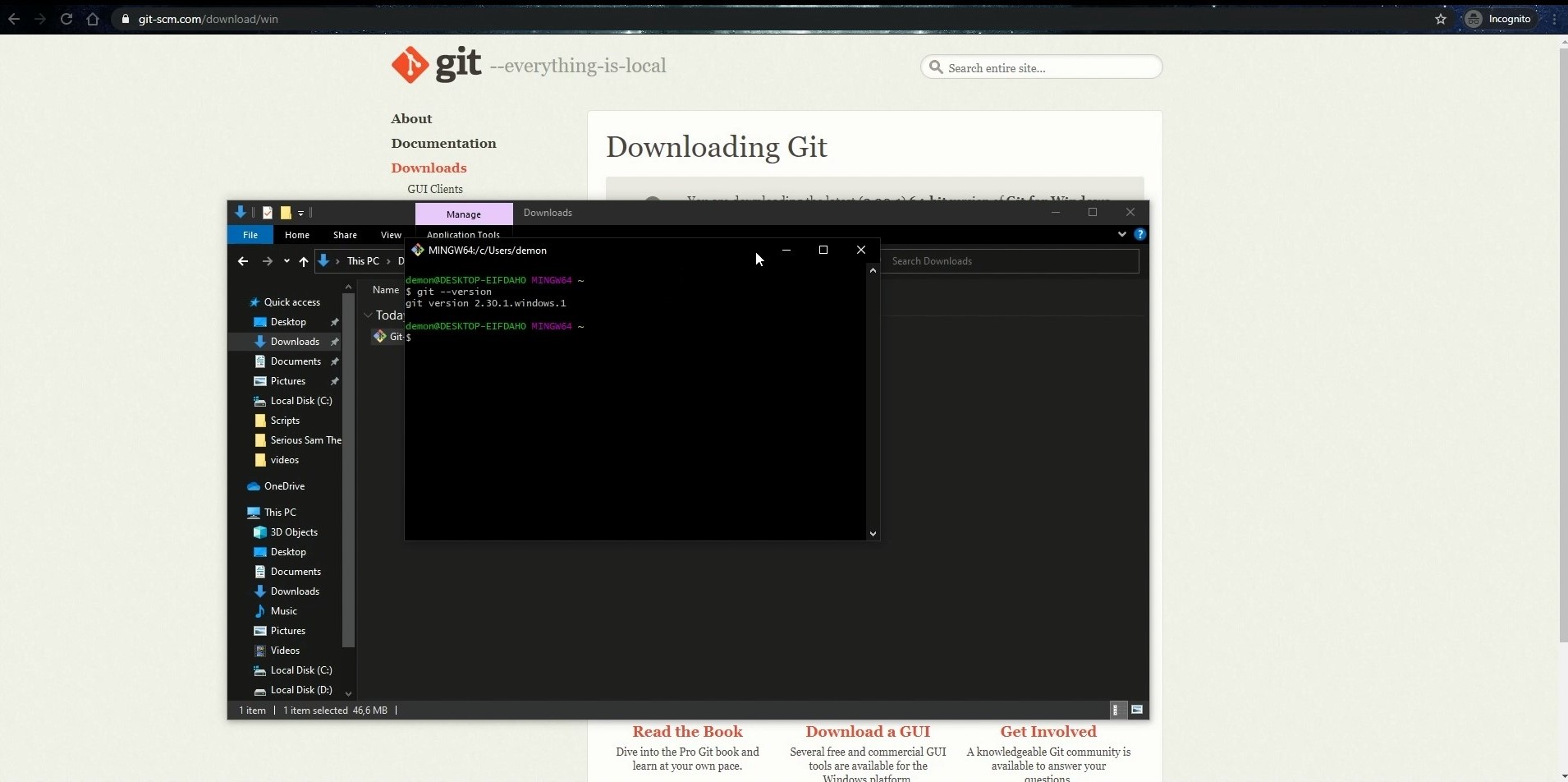
- And now, let’s try to clone the repository from Github.
- For this, go to the folder where you want to save the repositories using Git Bash or open this folder using Windows Explorer. Then, right-click on the free space and select Git Bash Here in the menu.
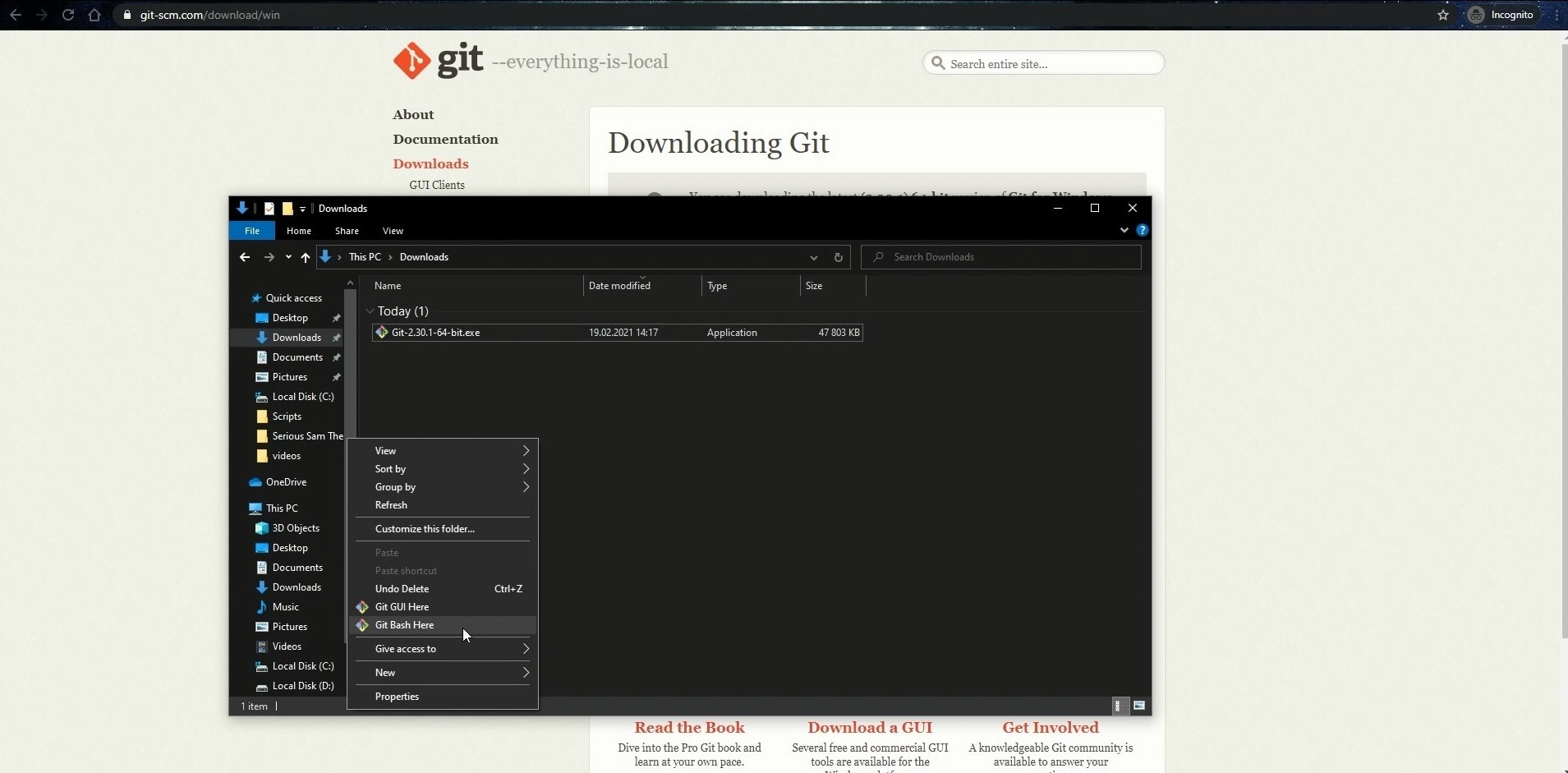
- Now, you need to get a link to the repository.
- Let’s use ours as an example. To find the repository, go to https://github.com/. In the search bar, type qa-madness and press Enter.
- You’ll see the menu on the left on the results page; select Users.
- Click on QA-Madness in the results. You can also follow us on GitHub.
- Click on the Repositories tab on the account page.
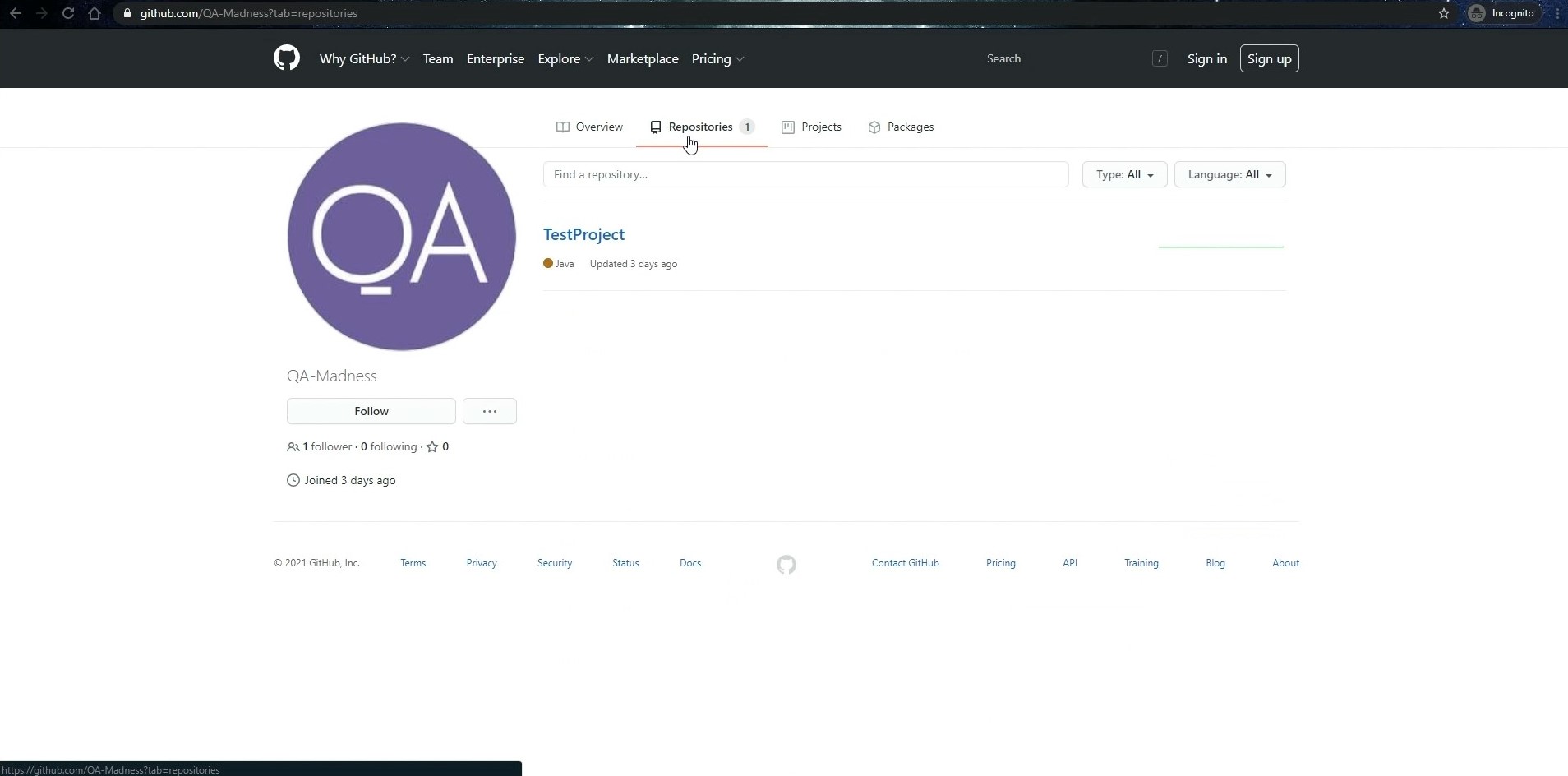
- Select TestProject from the list of repositories.
- Click on the Code on the repository page. Copy the link to the repository in the drop-down box.

- Now, return to the Git Bash window.
- Type git clone, paste the path to the repository, and press Enter.
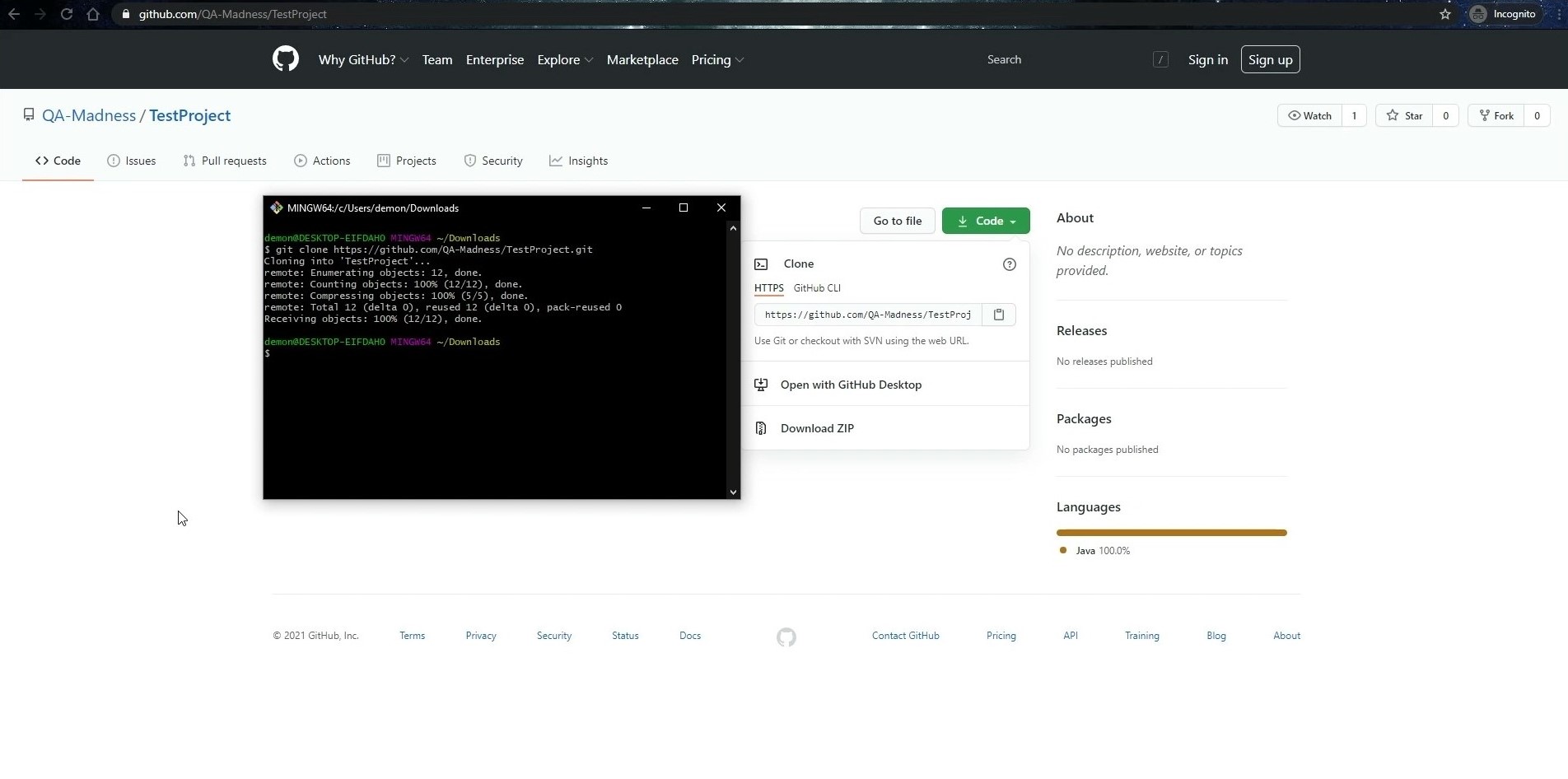
- Wait for the repository to download. It won’t take long since it has been created for this manual and is empty for now.
- After that, you can then open the folder with the downloaded repository and make sure the cloning was successful.