
Originally Published: Aug 6, 2021 | Last updated: May 28, 2026
This guide covers how to install Maven on Windows, including downloading, unzipping, setting environment variables, and verifying the installation.
In this post, we will show how to install Maven on the Windows platform. Note that if you want to use Maven, you need to have Java installed and an environment variable set up. Maven is a build automation and project management tool primarily used for Java projects (Apache Maven Documentation).
Pros and Cons of Maven
Pros:
- Manages all project dependencies automatically through a single pom.xml file (Maven Getting Started Guide).
- Provides a standardised project structure, making it easy to share and navigate Java projects.
- Integrates with popular tools like IntelliJ IDEA, Jenkins, and GitHub Actions out of the box.
- Runs the full build lifecycle – compiling, testing, and packaging – with a single command (Maven Build Lifecycle).
Cons:
- Has a steeper learning curve for beginners unfamiliar with XML configuration.
- Dependency conflicts can occur if the pom.xml is not managed carefully.
- Slower build times compared to newer tools like Gradle for large projects (Gradle vs Maven Performance).
#1 Step
Open Google and search for maven download.
Open the link to https://maven.apache.org/.
Click on the link to the binary archive in the Files table – for example, Binary zip archive. The file will be downloaded to a selected folder.
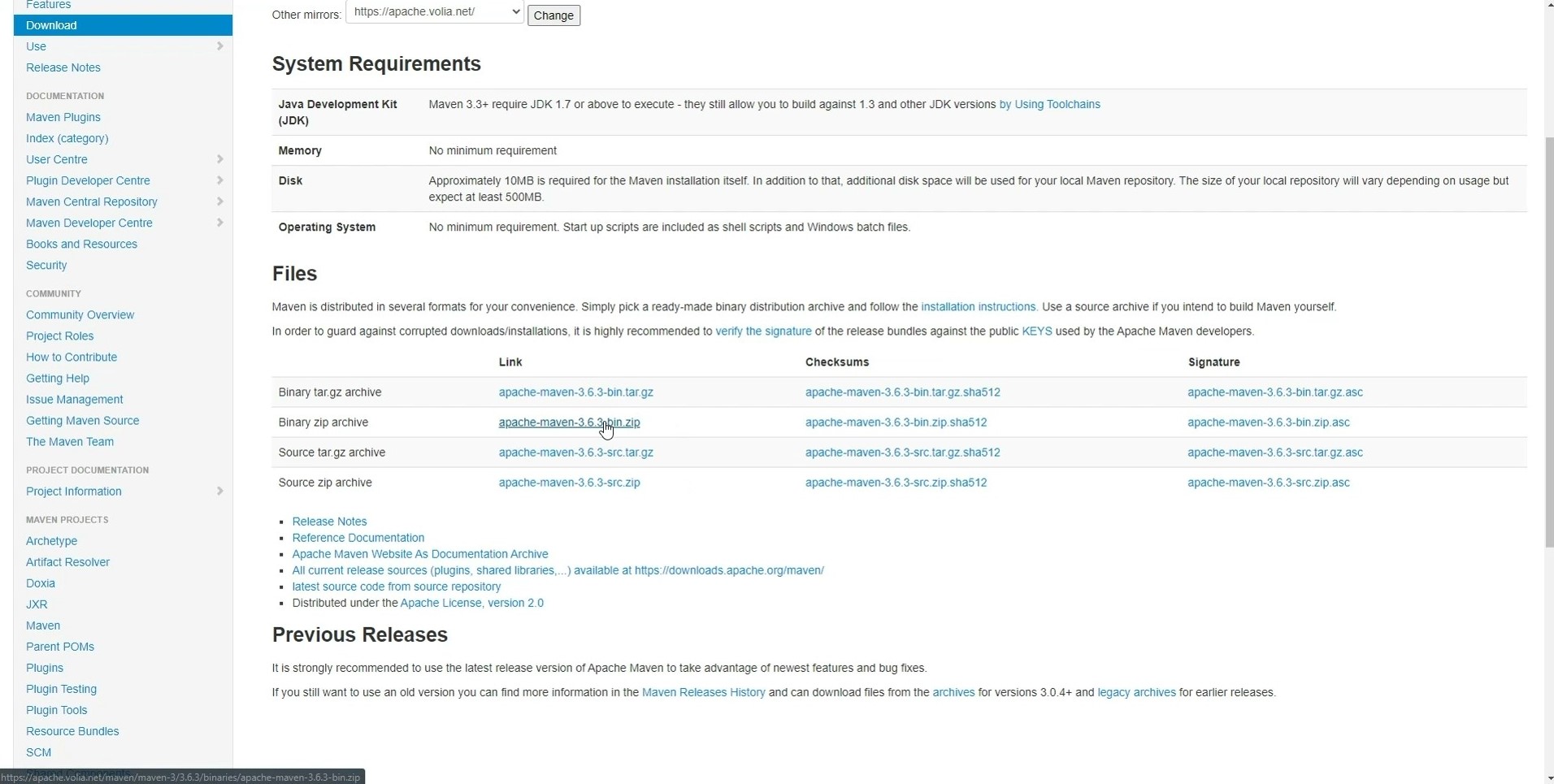
Step 1: Go to maven.apache.org and click the Binary zip archive link to download Maven
#2 Step
After that, go to the folder with the downloaded archive and unzip it.
Move the unpacked folder to the C:\Program Files\Maven folder. You can move the folder to any location of your choice, but it would be more convenient to keep it in the mentioned folder.
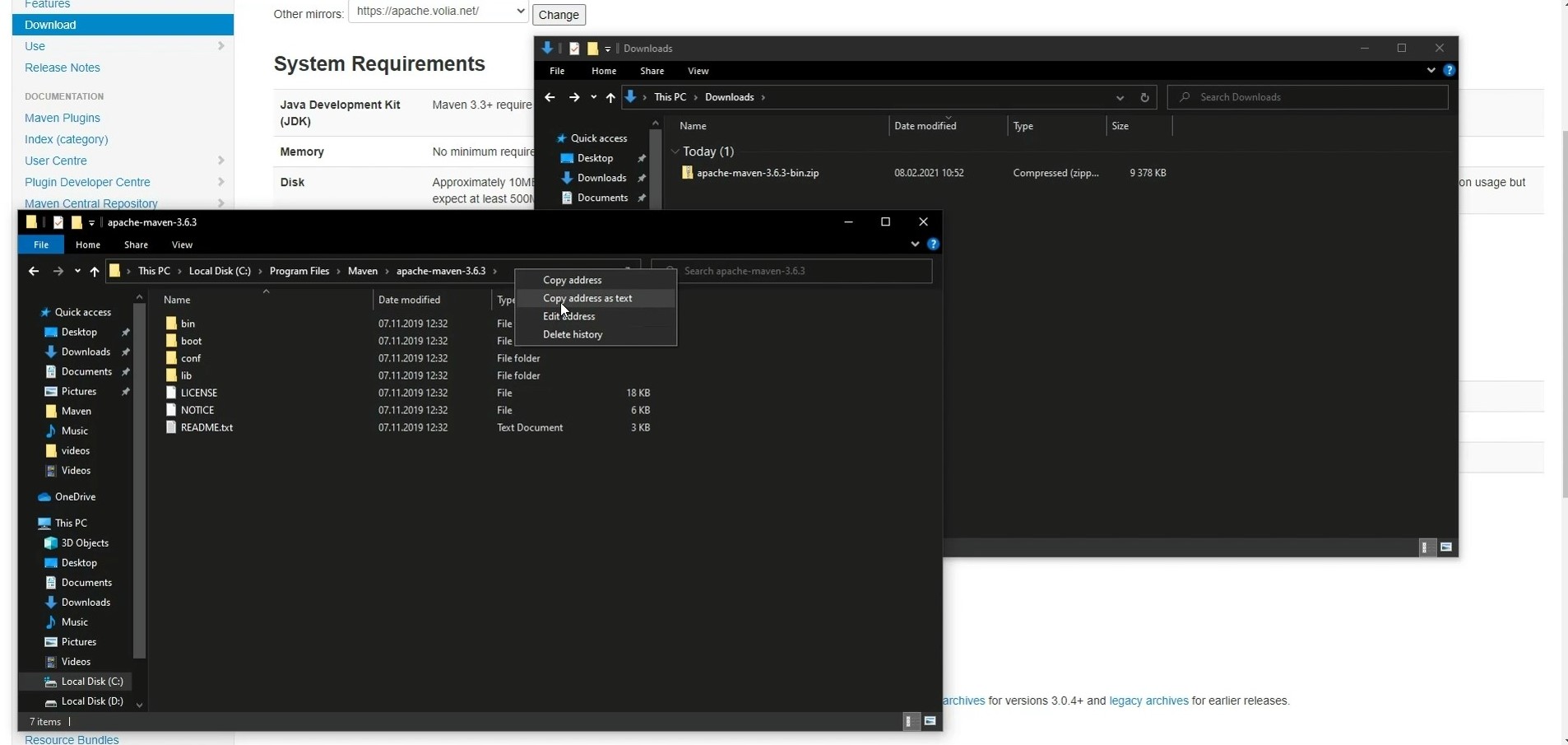
Step 2: Unzip the downloaded archive and move the Maven folder to C:\Program Files\Maven
#3 Step
Open the Maven folder.
Copy the path to the clipboard. You can do it easily with the right-click on the field with the folder path and selecting the Copy address path as text in the menu.
Step 3: Open the Maven folder and copy the full folder path from the address bar
#4 Step
Then, go to the environment variable settings. For this, right-click on the Windows Start button and select System in the menu. In the new window, click on the Advanced System Settings. You’ll see a pop-up window. Click on the Environment Variables there.
Click on New in the new pop-up window in the System variables.
Enter MAVEN_HOME (all characters in capital case) in the Variable name field.
Paste the copied earlier path to the Maven folder in the Variable value. Click on the OK button.
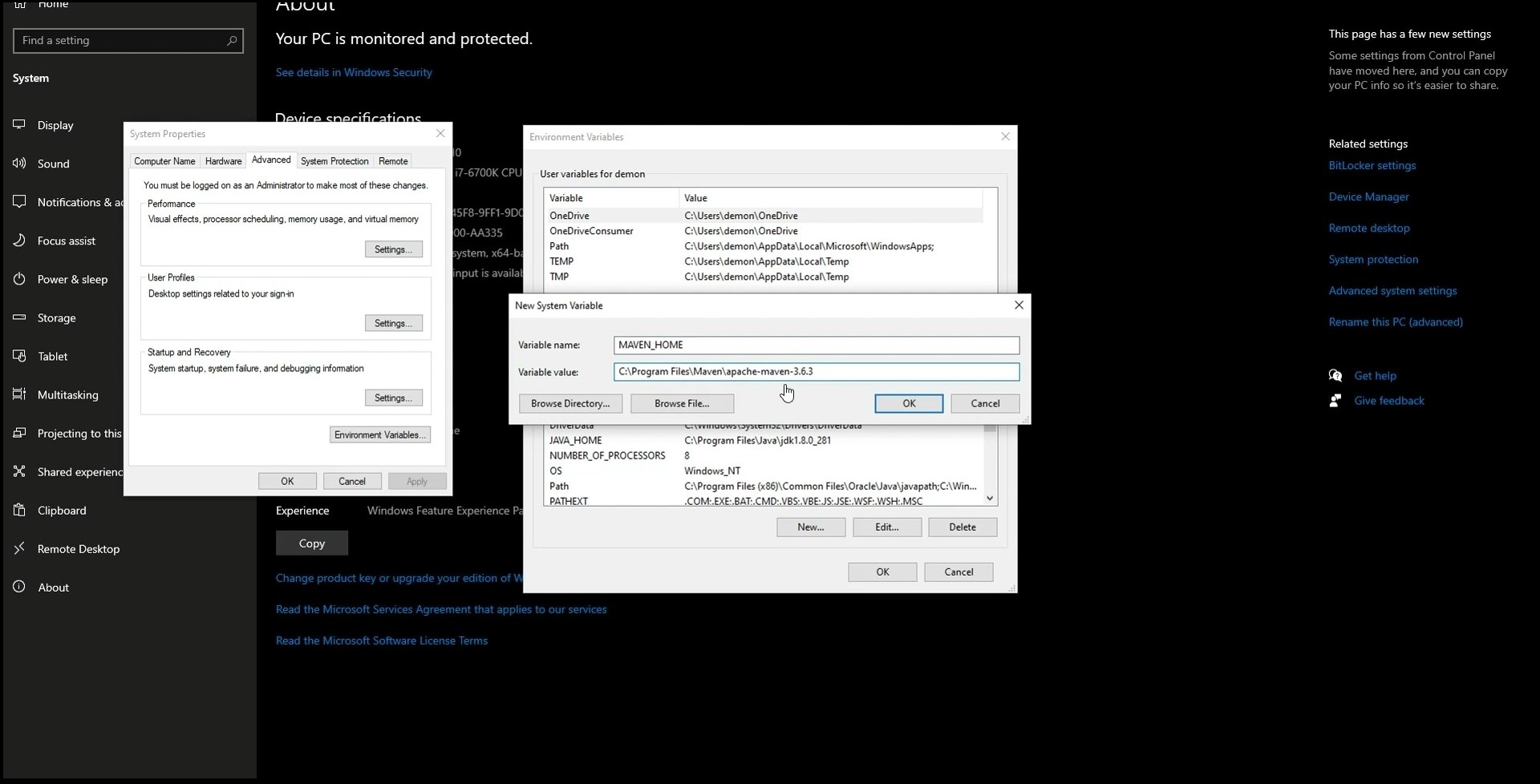
Step 4: Create a new MAVEN_HOME system variable and paste the Maven folder path as its value
#5 Step
Select the Path variable and click on Edit.
In the new window, click on New.
In the new field, enter %MAVEN_HOME%\bin. After that, click OK in all of the previously opened windows.
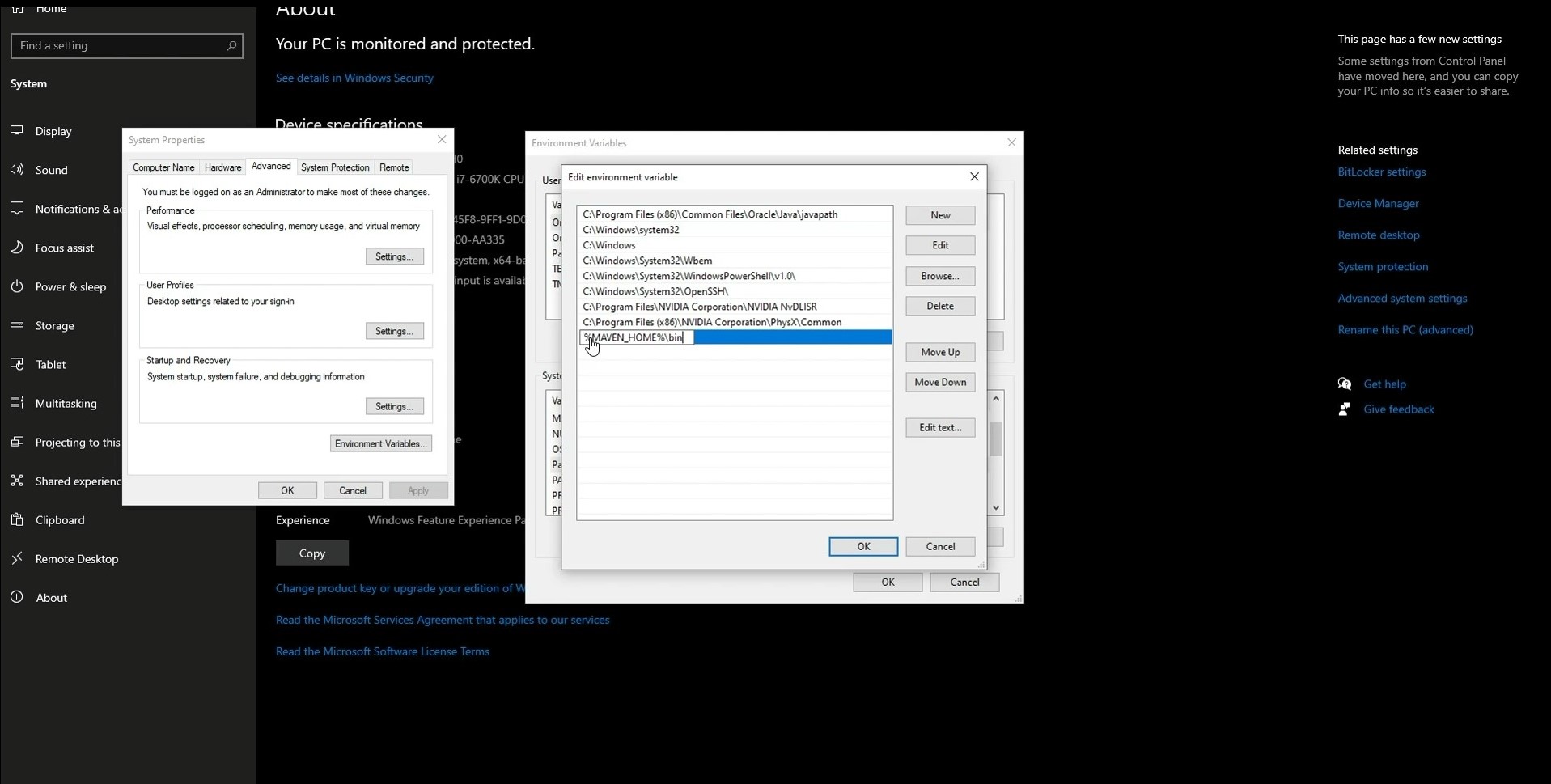
Step 5: Edit the Path variable and add %MAVEN_HOME%\bin as a new entry
#6 Step
To verify that the installation was successful, we need to open a command prompt. For this, open the Windows Start menu, type cmd, and press Enter.
Type maven -version in the command prompt and press Enter. If you see the information about the version in the following lines, the installation was successful.
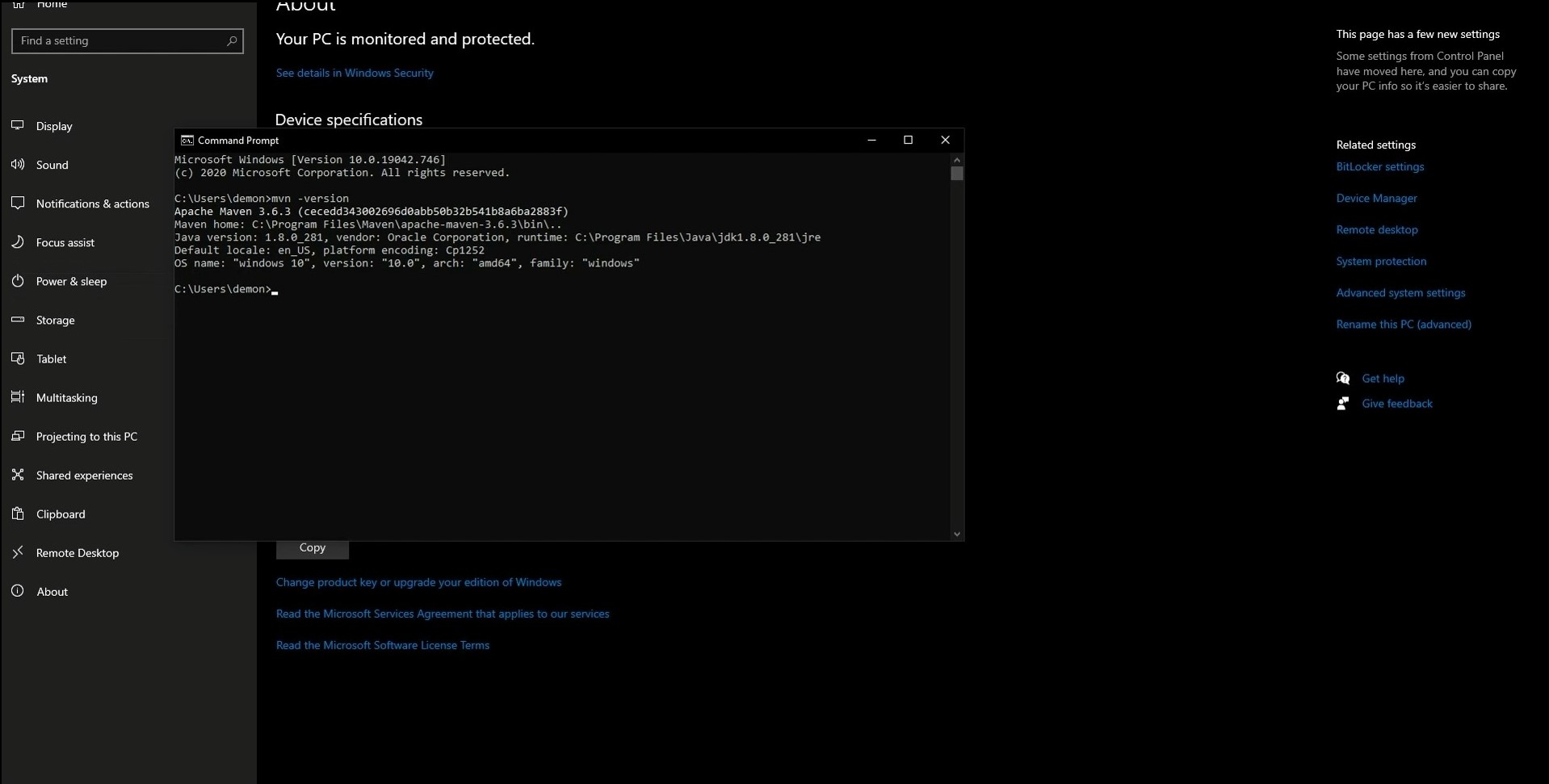
Step 6: Open Command Prompt, run mvn -version, and verify the Maven version is displayed
Frequently Asked Questions
What is Maven?
Apache Maven Maven is a build automation and project management tool primarily used for Java projects. It manages dependencies, compiles code, runs tests, and packages applications – all through a single configuration file called pom.xml.
How do I check if Maven is installed correctly?
Open a command prompt or terminal and run mvn -version. If Maven is installed correctly, the terminal will display the Maven version, Java version, and operating system details.
What should I do if the mvn command is not recognized?
This usually means the M2_HOME or Path environment variable was not configured correctly. Go to System Properties → Environment Variables, verify that M2_HOME points to your Maven installation folder, and ensure %M2_HOME%\bin is added to the Path variable.
After updating the variables, restart the command prompt and run mvn -version again.
Do I need to set JAVA_HOME as well?
Yes. Maven requires Java to run, so the JAVA_HOME environment variable must point to your JDK installation directory. Without it, Maven may fail to start or display Java-related errors.
Which Java version is compatible with Maven?
Apache Maven Maven 3.9 and later versions require Java 8 or higher. You can check your installed Java version by running java -version before installing or configuring Maven.